> ## Documentation Index
> Fetch the complete documentation index at: https://docs.pelanor.io/llms.txt
> Use this file to discover all available pages before exploring further.
# Dimensions
> Organize and analyse costs by business context with dimensions and segments.
 ## Overview
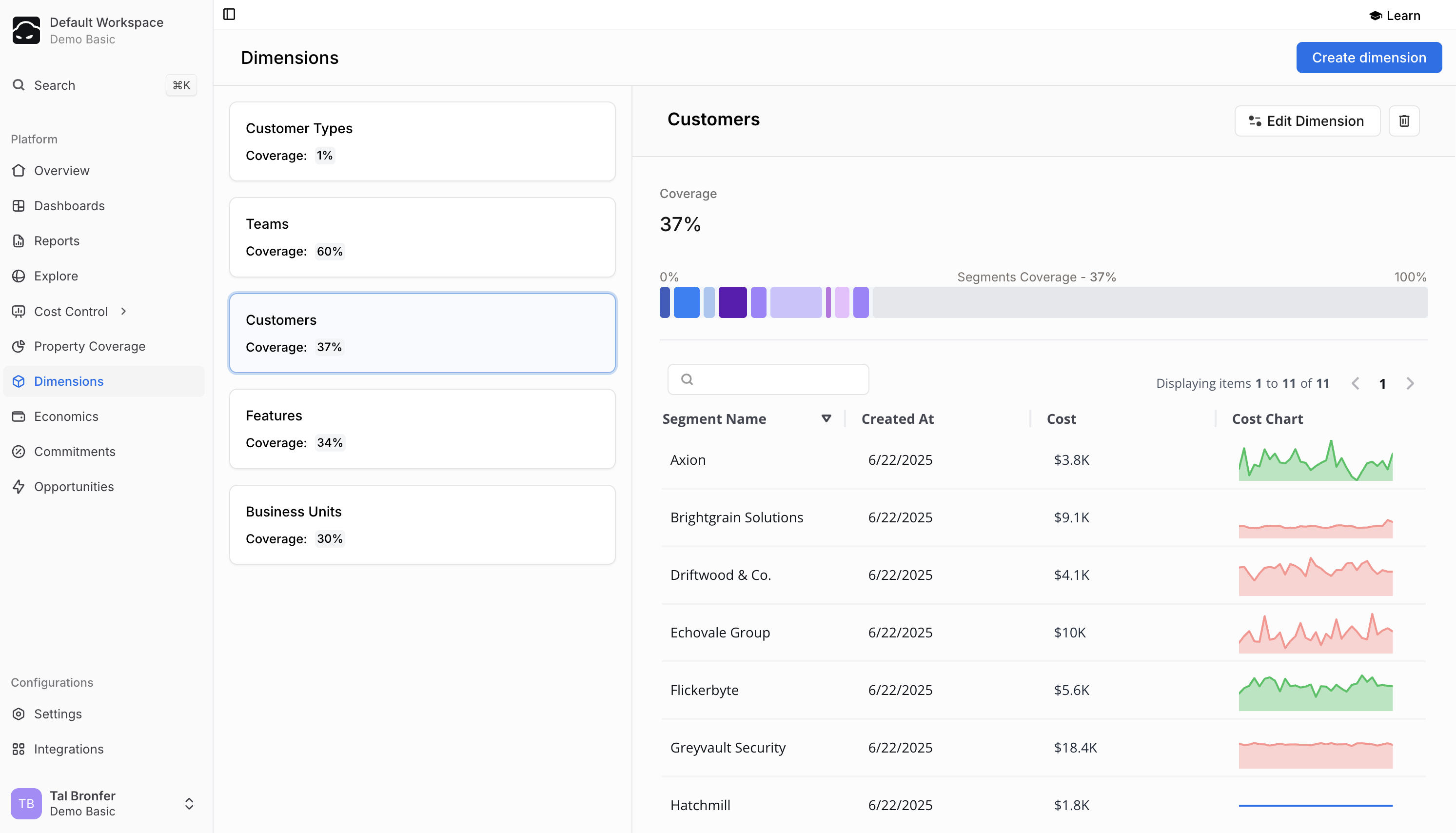
Dimensions let you slice your cloud spend along the lines that matter to your business—teams, products, environments, and more.\
Within each dimension, **segments** capture the exact set of resources that belong to every category you define.
***
## Core Concepts
### Dimensions
A dimension is a top-level category—“cost per *X*”. Common examples:
* **Business Units** – Marketing, Engineering, Sales
* **Product Lines** – Web Platform, Mobile Apps, API Services
* **Cost Centers** – R\&D, Operations, Customer Support
* **Usage Types** – Production, Development, Testing
### Segments
## Overview
Dimensions let you slice your cloud spend along the lines that matter to your business—teams, products, environments, and more.\
Within each dimension, **segments** capture the exact set of resources that belong to every category you define.
***
## Core Concepts
### Dimensions
A dimension is a top-level category—“cost per *X*”. Common examples:
* **Business Units** – Marketing, Engineering, Sales
* **Product Lines** – Web Platform, Mobile Apps, API Services
* **Cost Centers** – R\&D, Operations, Customer Support
* **Usage Types** – Production, Development, Testing
### Segments
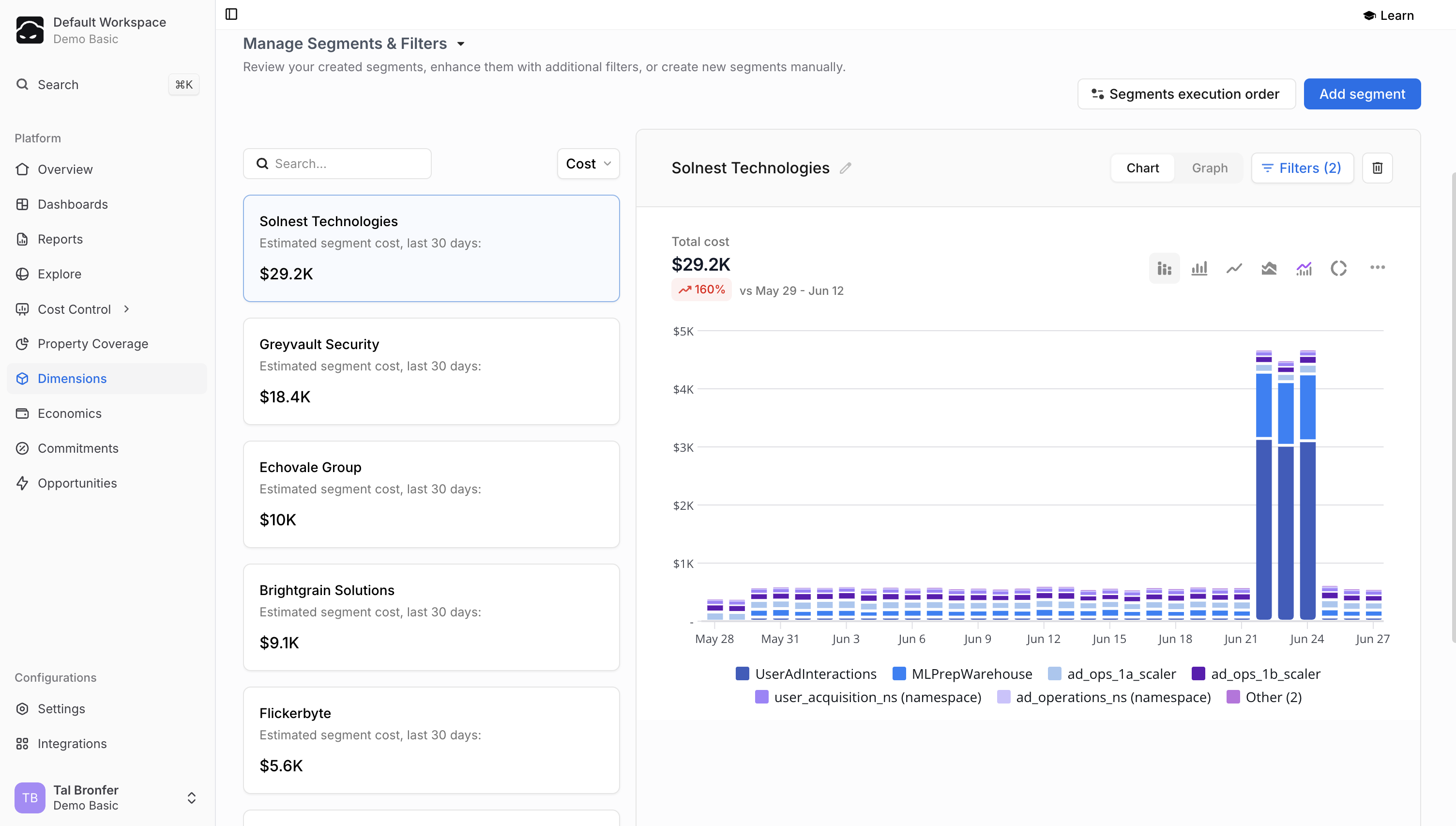 Segments are the specific buckets inside a dimension. They group resources that meet criteria you choose:
* In a **Teams** dimension, segments might be **Frontend**, **Backend**, **Data Science**.
* Resources lacking clean tags can still be captured by mixing rules—e.g. tag `team:frontend` *or* name prefix `fe-`.
Once assigned, the segment name becomes a consistent identifier everywhere in Pelanor, even if underlying tags are messy or missing.
### Coverage
Each dimension shows a **coverage %**—the share of spend already assigned to segments. Higher coverage equals clearer, more complete cost visibility.
***
## Creating a New Dimension
### 1. Initial Setup
Navigate to **Dimensions** and click **Add Dimension**.
Enter a name and description, then switch to the **Segments** tab.
Segments are the specific buckets inside a dimension. They group resources that meet criteria you choose:
* In a **Teams** dimension, segments might be **Frontend**, **Backend**, **Data Science**.
* Resources lacking clean tags can still be captured by mixing rules—e.g. tag `team:frontend` *or* name prefix `fe-`.
Once assigned, the segment name becomes a consistent identifier everywhere in Pelanor, even if underlying tags are messy or missing.
### Coverage
Each dimension shows a **coverage %**—the share of spend already assigned to segments. Higher coverage equals clearer, more complete cost visibility.
***
## Creating a New Dimension
### 1. Initial Setup
Navigate to **Dimensions** and click **Add Dimension**.
Enter a name and description, then switch to the **Segments** tab.
 ### 2. Bulk Creation (recommended)
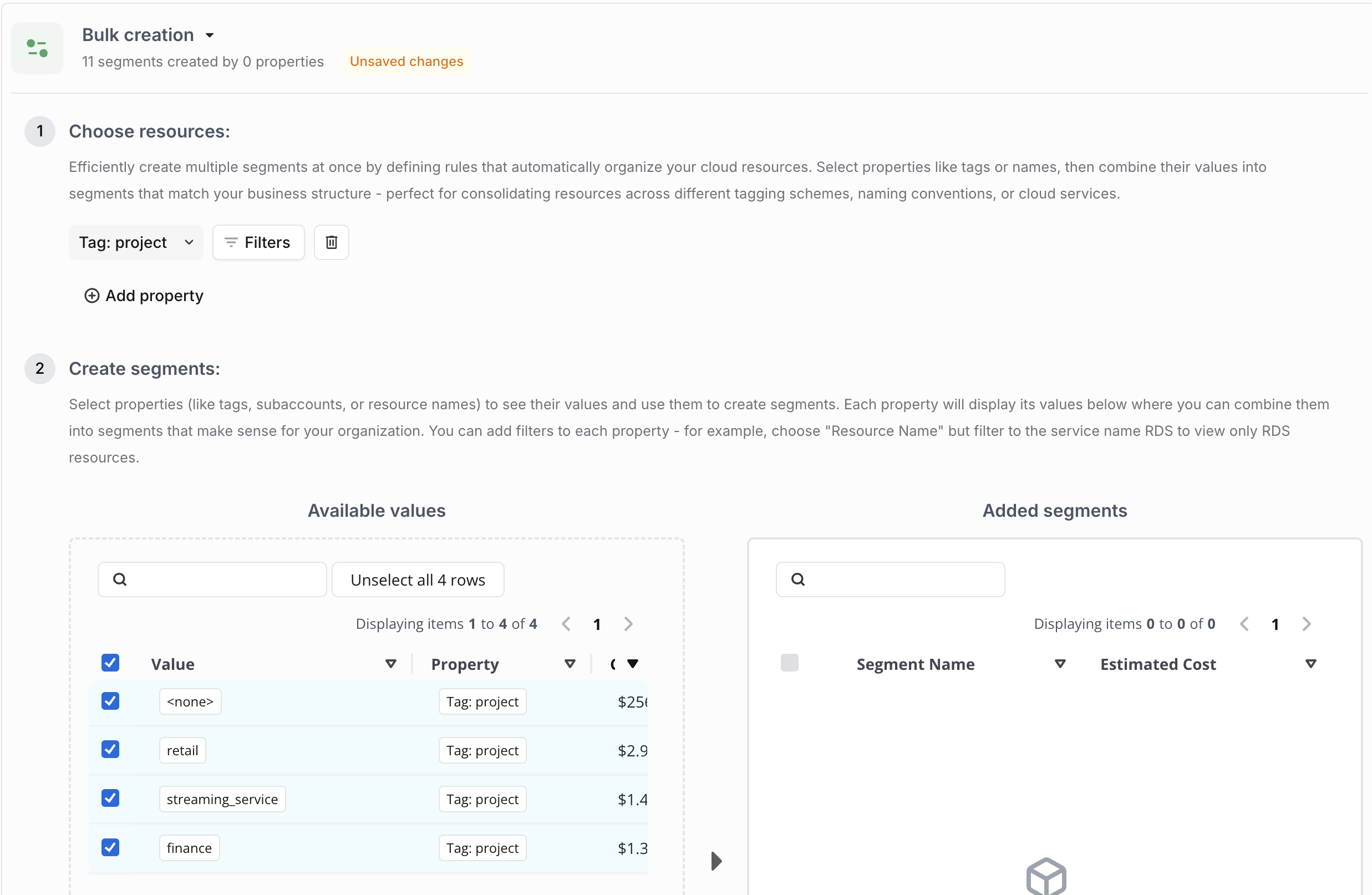
1. **Select properties** – choose tags, names, service types, etc. Multiple properties are allowed.
2. **(Optional) Add filters** – narrow by region, account, service, and so on.
3. **Segment editor**
* **Available Values** lists every discovered value with its current cost.
* Actions:
* **Create Segment** – each selected value becomes its own segment.
* **Segment Together** – merge selected values into one segment.
* **Add to Existing** – move values into an already-created segment.
Click **Apply Creation Rules** to lock in the bulk configuration.
### 3. Segment Management
After bulk creation, the preview shows every segment with estimated cost and a resource graph.
From here you can:
* **Add Segment** – create one manually.
* **Edit filters** on any segment.
* **Re-order execution** to control cost allocation when resources match multiple segments.
* **Search / sort** or view **Unallocated resources** for gap hunting.
***
## Using Dimensions
* **Reports & Dashboards** – group or filter any chart/table by your dimension or by individual segments.
* **Strategies** – some allocation strategies reference dimensions; see the **Related Strategies** tab for links.
***
## Best Practices
| Area | Tips |
| ---------------------- | --------------------------------------------------------------------------------------------------------------- |
| **Property selection** | Pick fields that map cleanly to your org structure. Combine multiple when no single property covers everything. |
| **Segment naming** | Use clear, consistent names that mirror your business language. |
| **Coverage** | Monitor the coverage percentage and investigate unallocated spend. Aim for the highest practical coverage. |
| **Maintenance** | Review segments periodically and adjust rules as your organisation evolves. |
***
## Limitations & Notes
* A segment cannot be empty—it must include at least one resource.
* Segments created via bulk rules are deleted only by removing the rule itself.
* Segments linked to workspaces must be detached before deletion.
* Execution order matters when a resource could qualify for multiple segments.
### 2. Bulk Creation (recommended)
1. **Select properties** – choose tags, names, service types, etc. Multiple properties are allowed.
2. **(Optional) Add filters** – narrow by region, account, service, and so on.
3. **Segment editor**
* **Available Values** lists every discovered value with its current cost.
* Actions:
* **Create Segment** – each selected value becomes its own segment.
* **Segment Together** – merge selected values into one segment.
* **Add to Existing** – move values into an already-created segment.
Click **Apply Creation Rules** to lock in the bulk configuration.
### 3. Segment Management
After bulk creation, the preview shows every segment with estimated cost and a resource graph.
From here you can:
* **Add Segment** – create one manually.
* **Edit filters** on any segment.
* **Re-order execution** to control cost allocation when resources match multiple segments.
* **Search / sort** or view **Unallocated resources** for gap hunting.
***
## Using Dimensions
* **Reports & Dashboards** – group or filter any chart/table by your dimension or by individual segments.
* **Strategies** – some allocation strategies reference dimensions; see the **Related Strategies** tab for links.
***
## Best Practices
| Area | Tips |
| ---------------------- | --------------------------------------------------------------------------------------------------------------- |
| **Property selection** | Pick fields that map cleanly to your org structure. Combine multiple when no single property covers everything. |
| **Segment naming** | Use clear, consistent names that mirror your business language. |
| **Coverage** | Monitor the coverage percentage and investigate unallocated spend. Aim for the highest practical coverage. |
| **Maintenance** | Review segments periodically and adjust rules as your organisation evolves. |
***
## Limitations & Notes
* A segment cannot be empty—it must include at least one resource.
* Segments created via bulk rules are deleted only by removing the rule itself.
* Segments linked to workspaces must be detached before deletion.
* Execution order matters when a resource could qualify for multiple segments.