> ## Documentation Index
> Fetch the complete documentation index at: https://docs.pelanor.io/llms.txt
> Use this file to discover all available pages before exploring further.
# Reports
> See how to build custom reports across your clouds, and how to save and organize them.
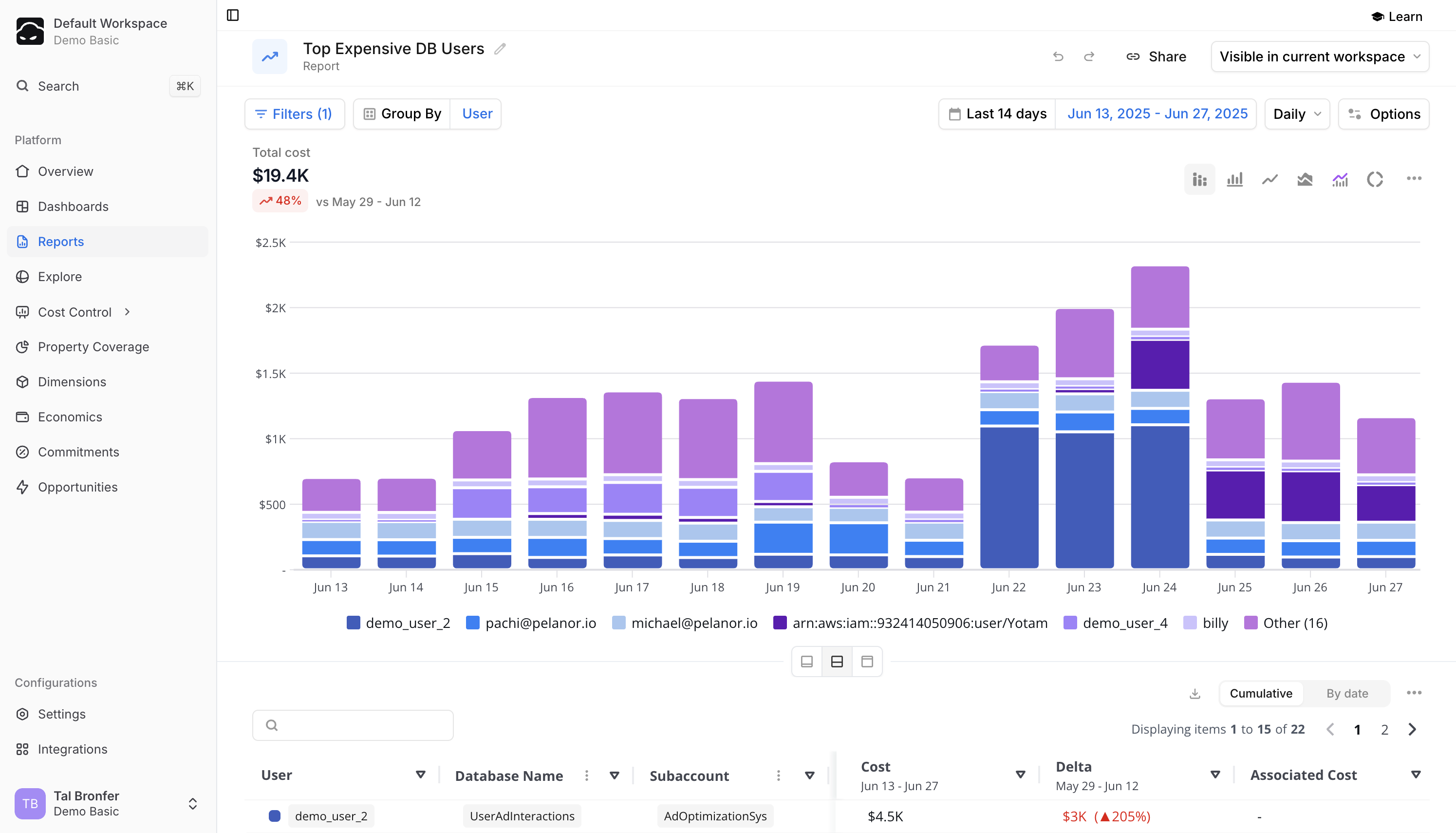 The **Reports** module lets you organize your organization’s reports and create new ones. There are two ways to create reports:
* **From the Explore page** – save an exploratory Explore report by clicking **Save** within the Explore module.
* **From the Reports list** – click **New Report** in the Reports list.
## Folders
When you open the **Reports** module, you’ll see these folders:
* **All Reports** – every report (user-created and predefined)
* **Predefined Reports** – built-in reports by Pelanor. These are useful if you’re new to the platform and want an overview of your cloud environment or a starter dashboard
* **My Reports** – reports created by you
You can also create custom folders to organize reports by business or technical needs.
Create a new report (or open an existing one) and click **Save**.
In the folder input, enter the name for the new folder.
The report is saved in that folder, which will now appear in the sidebar.
## Report List
Each row in the Reports table includes:
* **Name** – the report’s name
* **Created By** – the creator’s email or **Predefined** for Pelanor-provided reports
* **Created At**
* **Folder**
* **Cost Chart** – a mini cost trend chart from the report
**Quick actions** available for each report:
* **Edit**
* **Duplicate**
* **Move to Folder**
* **Delete**
## Controlling Report Access with Workspaces
By default, all folders and reports are visible to every user in your Pelanor account. You can restrict access by:
1. Creating **Workspaces**
2. Assigning users to specific Workspaces
After that, users will only see reports and folders created by others in the same Workspace (unless they have access to the **Default Workspace**).
For setup instructions, see the [Workspaces](/settings/workspaces) section.
The **Reports** module lets you organize your organization’s reports and create new ones. There are two ways to create reports:
* **From the Explore page** – save an exploratory Explore report by clicking **Save** within the Explore module.
* **From the Reports list** – click **New Report** in the Reports list.
## Folders
When you open the **Reports** module, you’ll see these folders:
* **All Reports** – every report (user-created and predefined)
* **Predefined Reports** – built-in reports by Pelanor. These are useful if you’re new to the platform and want an overview of your cloud environment or a starter dashboard
* **My Reports** – reports created by you
You can also create custom folders to organize reports by business or technical needs.
Create a new report (or open an existing one) and click **Save**.
In the folder input, enter the name for the new folder.
The report is saved in that folder, which will now appear in the sidebar.
## Report List
Each row in the Reports table includes:
* **Name** – the report’s name
* **Created By** – the creator’s email or **Predefined** for Pelanor-provided reports
* **Created At**
* **Folder**
* **Cost Chart** – a mini cost trend chart from the report
**Quick actions** available for each report:
* **Edit**
* **Duplicate**
* **Move to Folder**
* **Delete**
## Controlling Report Access with Workspaces
By default, all folders and reports are visible to every user in your Pelanor account. You can restrict access by:
1. Creating **Workspaces**
2. Assigning users to specific Workspaces
After that, users will only see reports and folders created by others in the same Workspace (unless they have access to the **Default Workspace**).
For setup instructions, see the [Workspaces](/settings/workspaces) section.