> ## Documentation Index
> Fetch the complete documentation index at: https://docs.pelanor.io/llms.txt
> Use this file to discover all available pages before exploring further.
# User Management
> Invite, manage and control user access within your Pelanor organization.
 To manage user roles in Pelanor you must be an **Admin** or **Workspace Admin**.
***
## User List
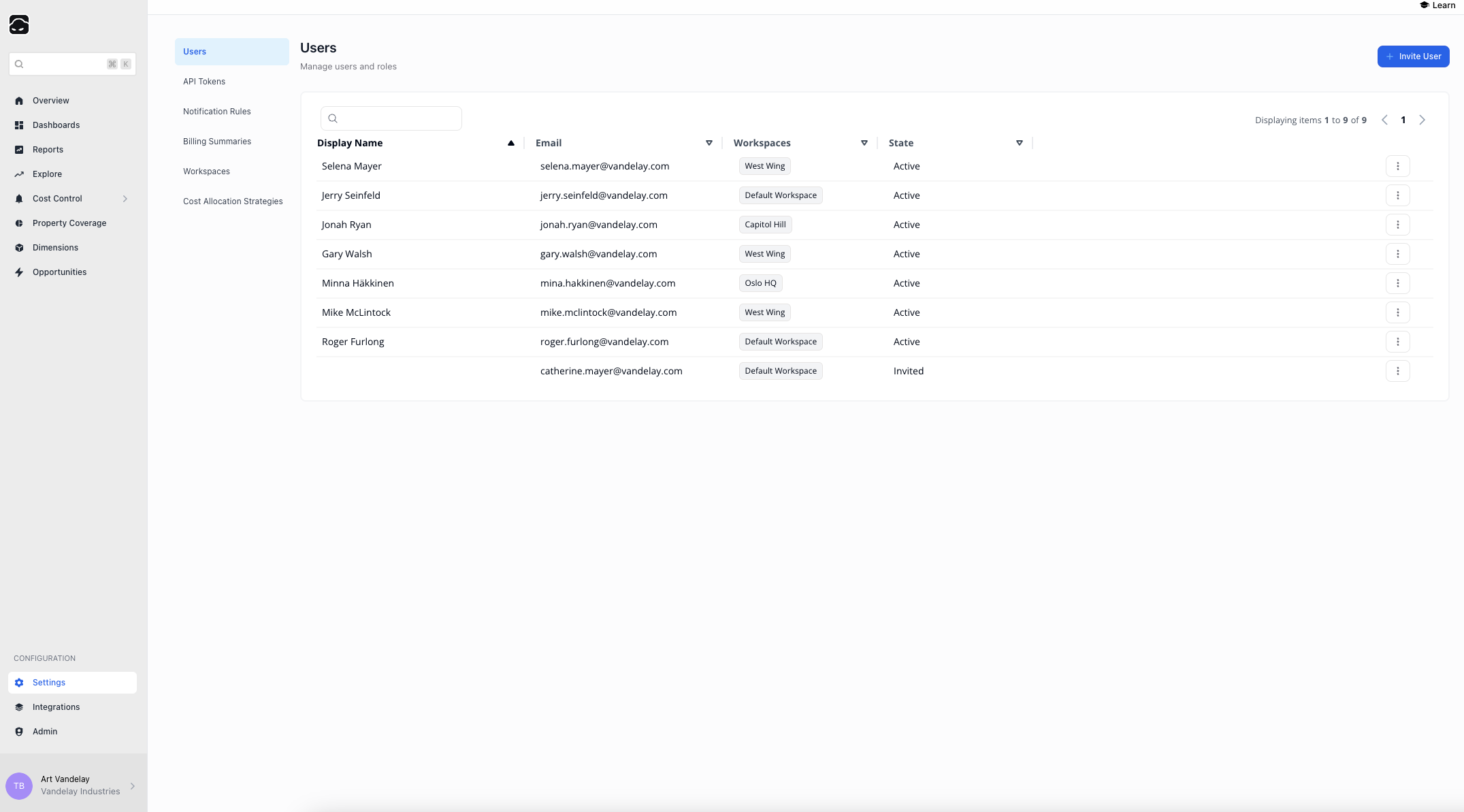
Navigate to **Settings → Users** to see all users.
* **Display Name** – blank until the user completes registration
* **Email**
* **Workspaces** – Workspaces assigned to the user
* **State** – Active, Invited, or Disabled
The User List shows all users across every Workspace; no need to switch Workspaces to manage them.
***
## Inviting Users
To manage user roles in Pelanor you must be an **Admin** or **Workspace Admin**.
***
## User List
Navigate to **Settings → Users** to see all users.
* **Display Name** – blank until the user completes registration
* **Email**
* **Workspaces** – Workspaces assigned to the user
* **State** – Active, Invited, or Disabled
The User List shows all users across every Workspace; no need to switch Workspaces to manage them.
***
## Inviting Users
 Go to **Settings → Users**.
Click **Invite User** and enter the user’s email.
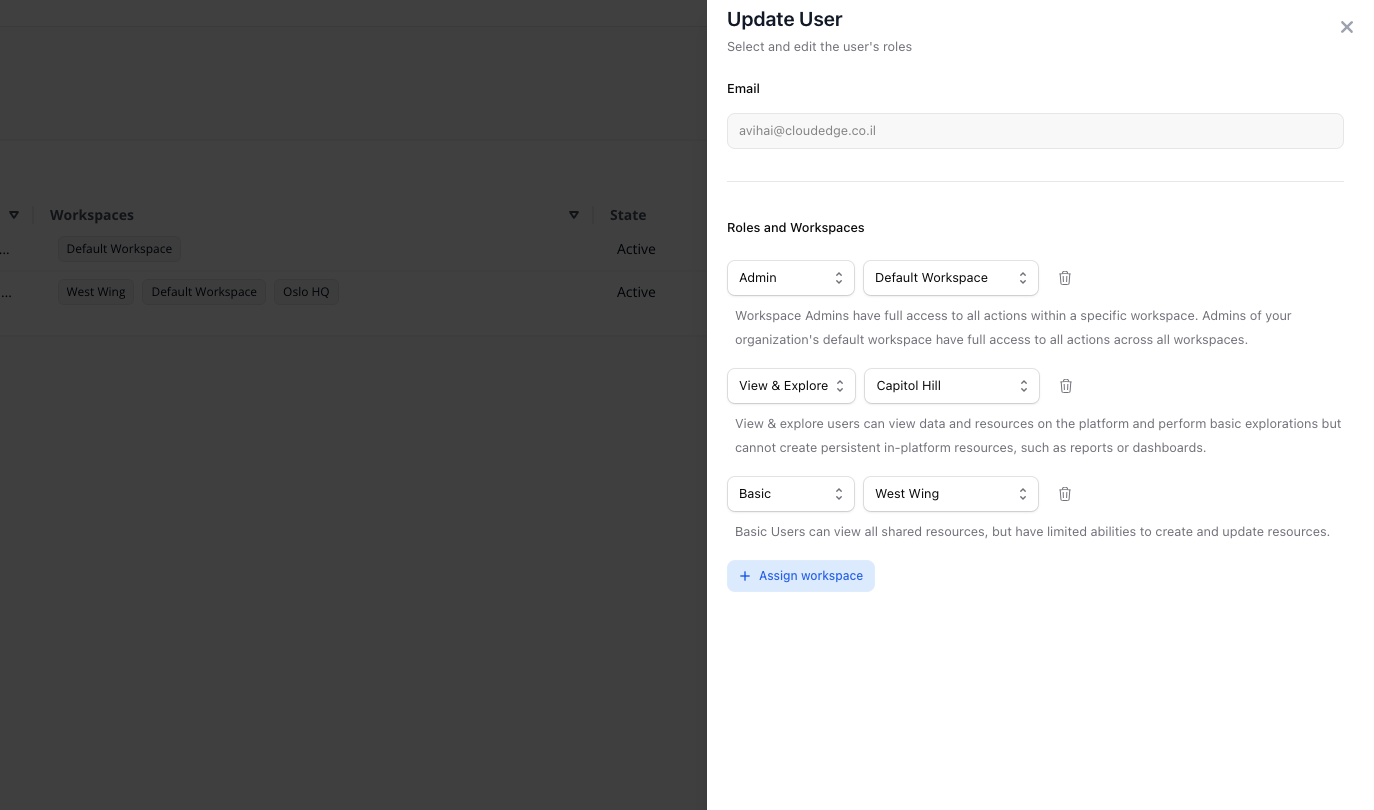
* If only the **Default Workspace** exists, assign a role for that Workspace.
* If multiple Workspaces exist, assign roles per Workspace.
Click **Save Changes** to send the invitation.
A user’s email cannot be edited after the invitation is sent.
***
## Editing Users
Navigate to **Settings → Users**.
Click the **Actions** (⋯) button next to a user and select **Edit**.
Make changes in the side panel.
Click **Save Changes** to apply updates.
***
## Deleting Users
Navigate to **Settings → Users**.
Click the **Actions** (⋯) button and choose **Delete**.
Confirm the deletion when prompted.
Go to **Settings → Users**.
Click **Invite User** and enter the user’s email.
* If only the **Default Workspace** exists, assign a role for that Workspace.
* If multiple Workspaces exist, assign roles per Workspace.
Click **Save Changes** to send the invitation.
A user’s email cannot be edited after the invitation is sent.
***
## Editing Users
Navigate to **Settings → Users**.
Click the **Actions** (⋯) button next to a user and select **Edit**.
Make changes in the side panel.
Click **Save Changes** to apply updates.
***
## Deleting Users
Navigate to **Settings → Users**.
Click the **Actions** (⋯) button and choose **Delete**.
Confirm the deletion when prompted.