> ## Documentation Index
> Fetch the complete documentation index at: https://docs.pelanor.io/llms.txt
> Use this file to discover all available pages before exploring further.
# Workspaces
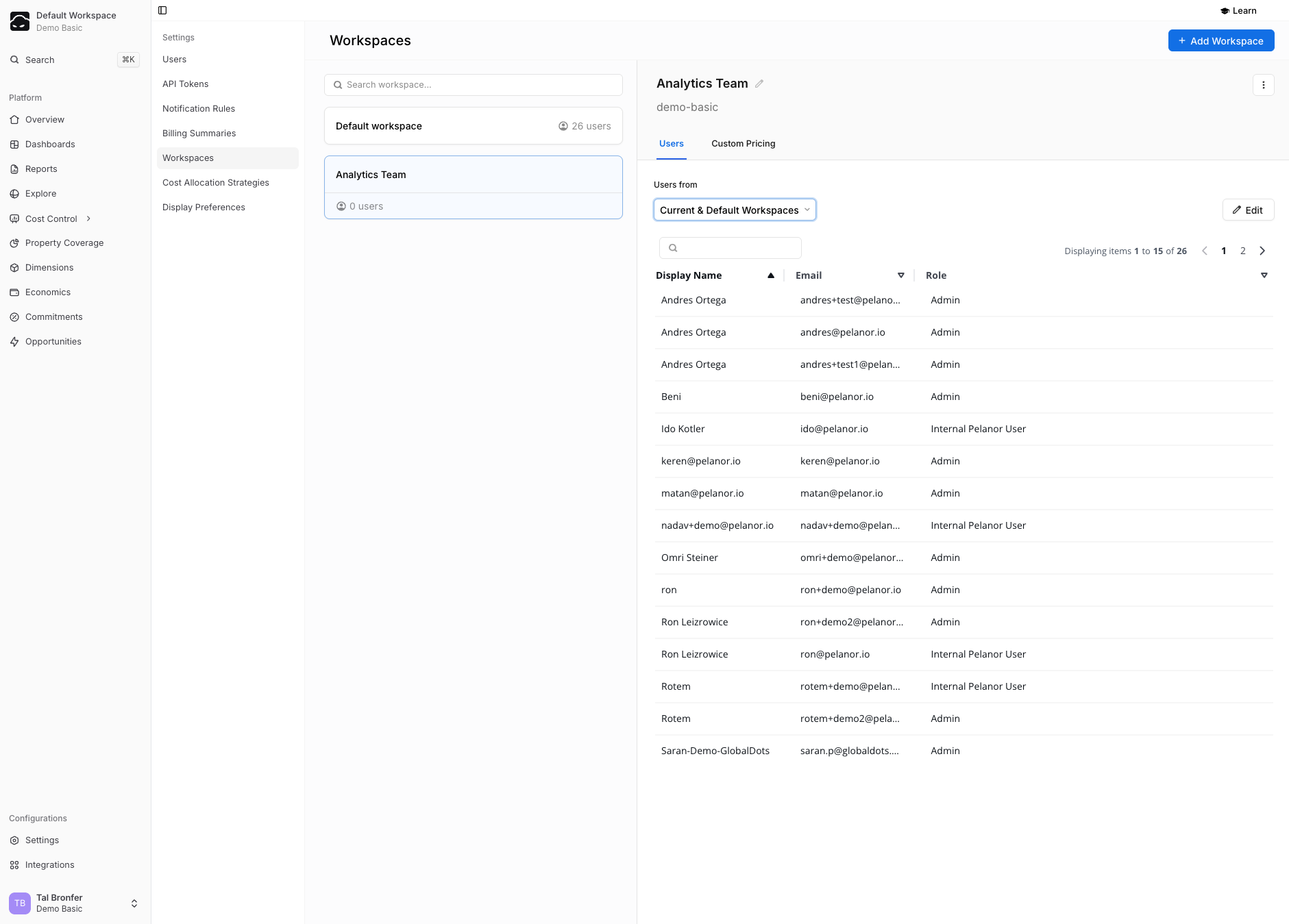
> Organize and control access to subsets of your cloud cost data. A workspace can model a security group, department, MSP customer or anything that fits your organizational structure.
 ## What are Workspaces?
Workspaces allow you to scope and isolate data and access within Pelanor.
**Key benefits:**
* **Security & RBAC** – restrict sensitive or production data to authorised users
* **Multi-tenant support** – MSPs can create a Workspace per tenant so each customer sees only their own data
***
## Default Workspace
The **Default Workspace** shows all data Pelanor can access and is used for global user and workspace management.
Limit access to the **Default Workspace** to Administrators only.
***
## Managing Workspaces
Only **Admin** users in the **Default Workspace** can create, edit, or delete Workspaces.
### Creating a Workspace
## What are Workspaces?
Workspaces allow you to scope and isolate data and access within Pelanor.
**Key benefits:**
* **Security & RBAC** – restrict sensitive or production data to authorised users
* **Multi-tenant support** – MSPs can create a Workspace per tenant so each customer sees only their own data
***
## Default Workspace
The **Default Workspace** shows all data Pelanor can access and is used for global user and workspace management.
Limit access to the **Default Workspace** to Administrators only.
***
## Managing Workspaces
Only **Admin** users in the **Default Workspace** can create, edit, or delete Workspaces.
### Creating a Workspace
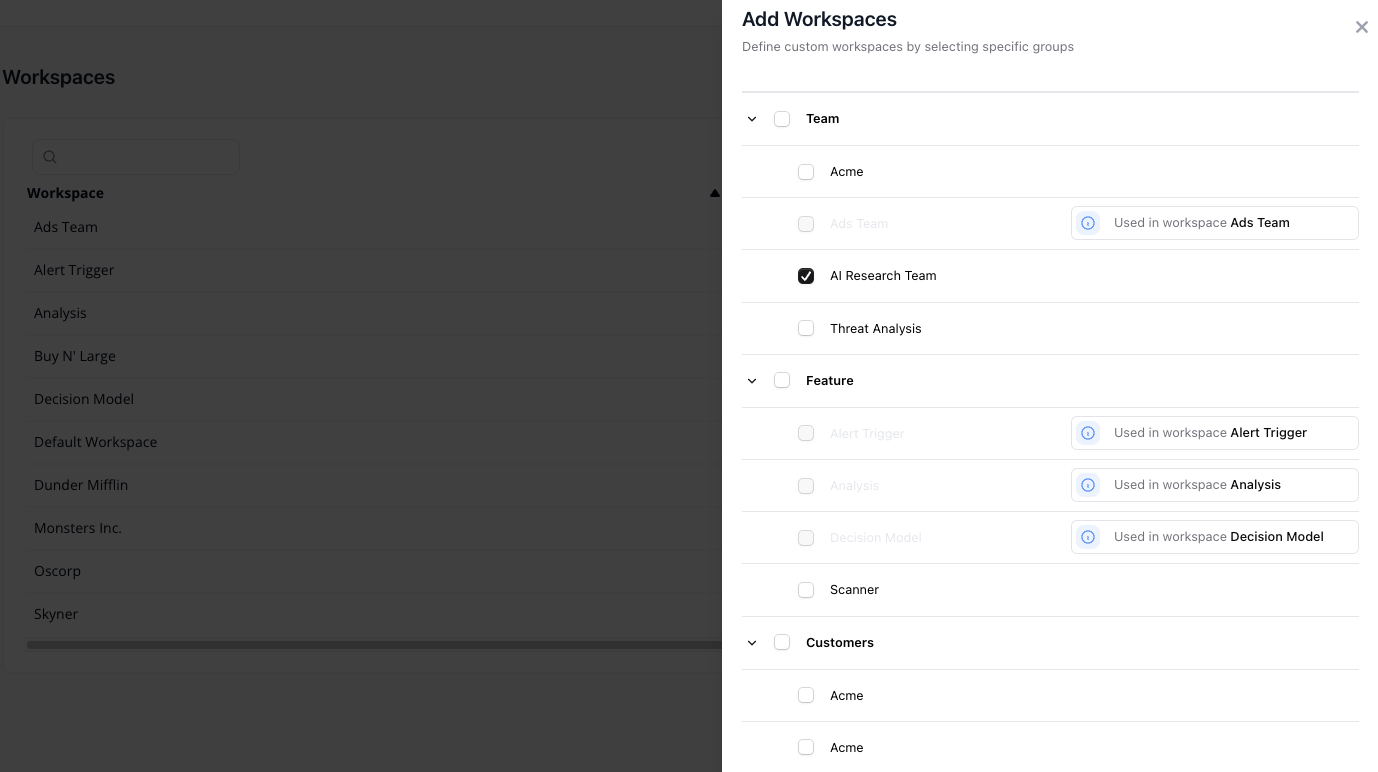 Before creating a Workspace, ensure that the relevant **Dimension** and **Groups** are already defined.\
Refer to the [Dimensions and Groups](/dimensions) documentation for help.
Go to **Settings → Workspaces**.
Click **Add Workspace**.
Expand a Dimension (e.g., *Business Unit*) and select one or more Groups.
Click **Next**, and optionally apply discount rules for this Workspace.
***
### Editing a Workspace / Managing Users
To make changes:
1. Go to **Settings → Workspaces**
2. Click the **⋯ Actions** menu next to a Workspace → **Edit workspace**
You can update:
* **Workspace name**
* **Workspace users** – add, remove, or change roles
Users must be created under **Settings → Users** before they can be added to a Workspace.
***
### Removing a Workspace
* Go to **Settings → Workspaces**
* Click the **Actions** (⋯) icon next to a Workspace
* Select **Delete**
The **Default Workspace** cannot be deleted.
***
## Changing Workspaces
Before creating a Workspace, ensure that the relevant **Dimension** and **Groups** are already defined.\
Refer to the [Dimensions and Groups](/dimensions) documentation for help.
Go to **Settings → Workspaces**.
Click **Add Workspace**.
Expand a Dimension (e.g., *Business Unit*) and select one or more Groups.
Click **Next**, and optionally apply discount rules for this Workspace.
***
### Editing a Workspace / Managing Users
To make changes:
1. Go to **Settings → Workspaces**
2. Click the **⋯ Actions** menu next to a Workspace → **Edit workspace**
You can update:
* **Workspace name**
* **Workspace users** – add, remove, or change roles
Users must be created under **Settings → Users** before they can be added to a Workspace.
***
### Removing a Workspace
* Go to **Settings → Workspaces**
* Click the **Actions** (⋯) icon next to a Workspace
* Select **Delete**
The **Default Workspace** cannot be deleted.
***
## Changing Workspaces
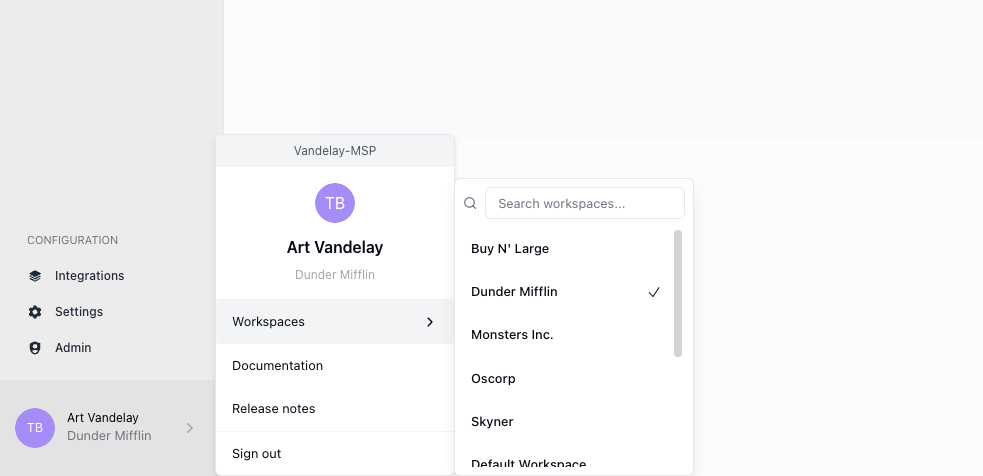 If a user belongs to multiple Workspaces, they can switch between them using the profile dropdown in the top-right corner of the Pelanor interface.